> ## Documentation Index
> Fetch the complete documentation index at: https://docs.serial.io/llms.txt
> Use this file to discover all available pages before exploring further.
# 1. Configure Serial
> Let us configure your parts & data in serial
Only Administrator users can configure serial
## Components
### What is a component?
Components are parts in your manufacturing workflow that contain uniquely identifiable data. Components can be incoming material,
sub assemblies or final assemblies.
### Creating a new component
1. To create a component, click the **+ Add Component** button
2. Enter the component name and select identifier type
3. Optionally add a photo of the component
4. Click **Create** button
## Processes
### What is a process?
A process is a manufacturing step in your workflow that advances the component towards completion.
A process could be an incoming quality check, assembly step, machining step or quality check.
Think of a process as a step in your process with distinct data you care about.
### Process builder
Anyone can build custom user interfaces which can be deployed to your production floor, enabling your production team to enter data directly into serial. Any number and combination of fields
can be added to a specific process so you can collect all of the data you care about.
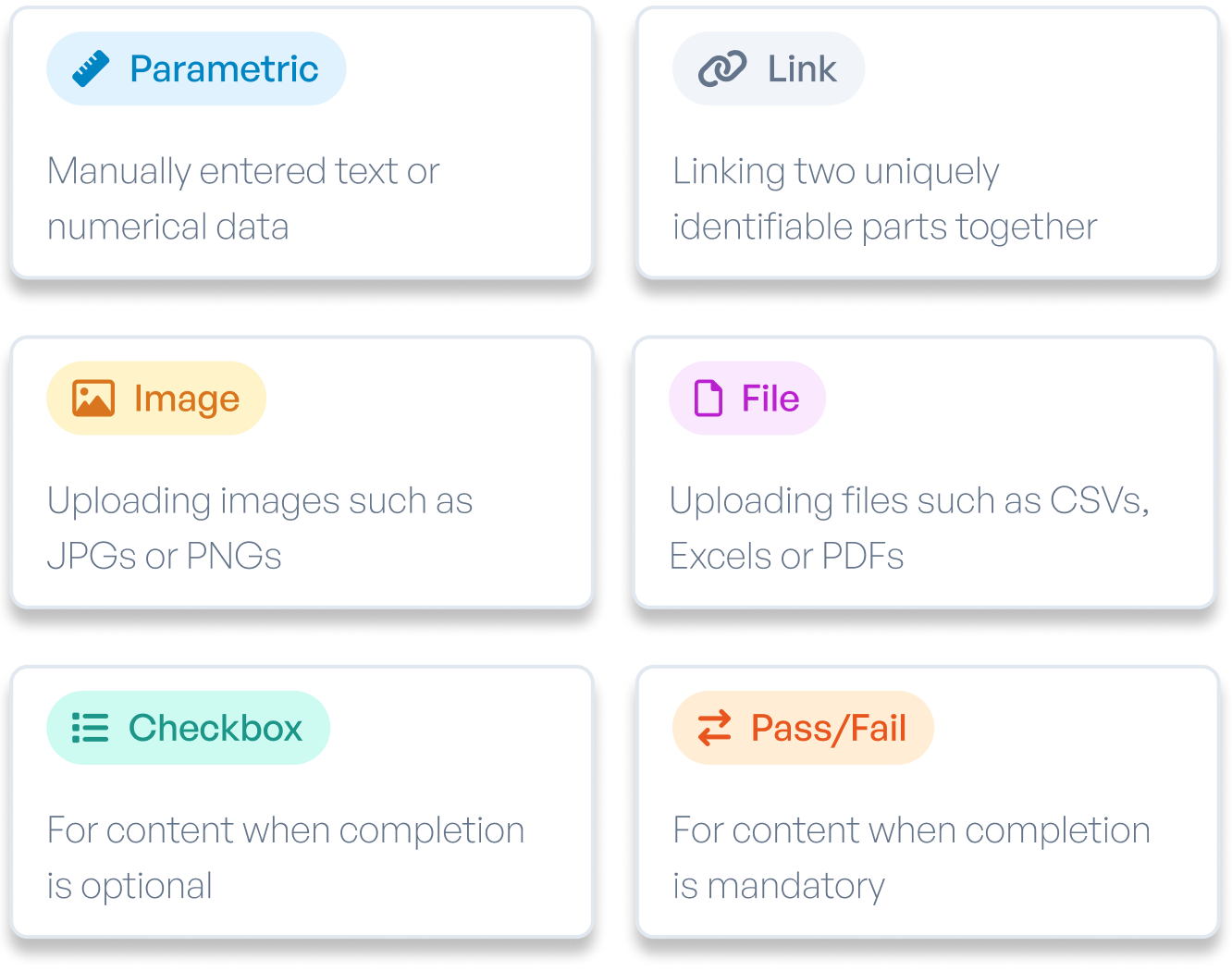
### Field types
The following field types are currently supported. Each type includes data validation to minimize errors.
### Creating a new process
1. To create a process, click the **+ Add Process** button
2. Name your your process
3. Select if data will be collected by user interface or API
4. Select the manual entry template
5. Customize the prompt your production team will read
6. Name the parameter
7. Select the data type
8. Click the **Save** button
 ### Creating a new process
1. To create a process, click the **+ Add Process** button
2. Name your your process
3. Select if data will be collected by user interface or API
4. Select the manual entry template
5. Customize the prompt your production team will read
6. Name the parameter
7. Select the data type
8. Click the **Save** button
### Creating a new process
1. To create a process, click the **+ Add Process** button
2. Name your your process
3. Select if data will be collected by user interface or API
4. Select the manual entry template
5. Customize the prompt your production team will read
6. Name the parameter
7. Select the data type
8. Click the **Save** button